Connecting to WebDAV server on Microsoft Windows
Mini-Redirector is a Microsoft WebDAV client that is provided as part of Windows. Here we will describe mini-redirector provided with Windows 10, Windows 8, Windows 7 and Windows Vista.
Important! Mini-Redirector is not installed by default on Windows Server 2008 and later Windows Server versions. To enable it, install the Desktop Experience feature.
For Web Folders client provided with Windows XP and Windows Server 2003 please see this article.
For how to mount a drive to WebDAV server please see this article.
Specifying WebDAV Server Url in Windows Explorer Address Bar
The fastest way to connect to WebDAV server on Windows is to use Windows Explorer address bar. Windows Shell recognizes special URI format that looks like:
\\server@SSL@port\DavWWWRoot\path\
The '@port' segment is optional if the default port 80 or 443 is used, as well as you should specify '@SSL' only if SSL/HTTPS is required. You can also avoid DavWWWRoot (see below).
For example to connect to the root of your WebDAV server running on port 5555 specify in the address bar in Windows Explorer:
\\server@5555\DavWWWRoot\
To connect to WebDAV server that is using SSL and running on a non-default port 4444 you must specify:
\\server@SSL@4444\DavWWWRoot\
What is DavWWWRoot?
DavWWWRoot is a special keyword recognized by Windows Shell. There is no such folder exists on your WebDAV server and you should not create it. You also will not find any DavWWWRoot name in requests to your server. The DavWWWRoot keyword tells Mini-Redirector driver, that handles WebDAV requests, that you are connecting to the root of WebDAV server.
You can avoid using this keyword if you specify the folder that exists on your server when connecting to the server. For example:
\\webdavserver.com\sales\
in this case DavWWWRoot will not appear in URLs.
Special Characters Support in Windows Shell
Note that Microsoft mini-redirector does not support '%' symbol in file and folder names. It would not encode it correctly. As though you cannot name your items my%file.docx and my%folder. However, this does not pertain to any other special characters encoding - Windows Shell will correctly encode them using percent encoding.
Long Delays When Connecting and Browsing WebDAV Server
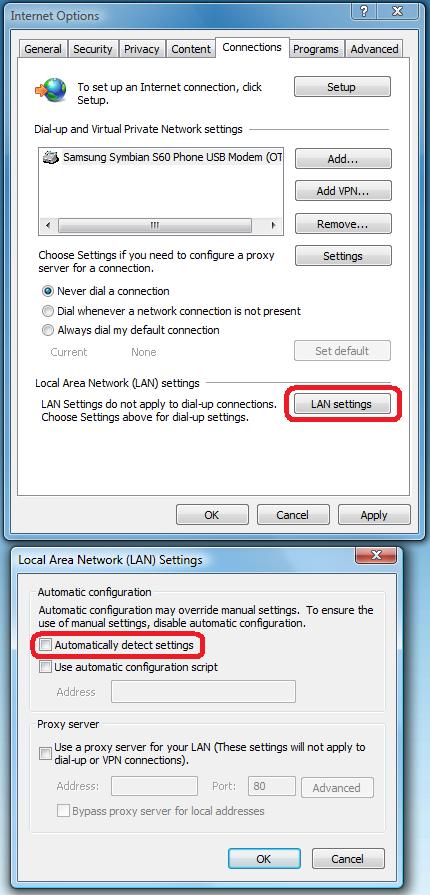
In some environments, you may experience long delays when browsing WebDAV server. In many cases, they are caused by a proxy or firewall server. The first thing to try is to uncheck the 'Automatically Select Settings' checkbox in LAN Settings dialog:
Using Basic Authentication
Basic authentication requires SSL/HTTPS connection to be used. By default, the Windows WebDAV client will fail to connect to insecure WebDAV server using Basic. However for development purposes you often will require to enable non-SSL access. In this case, you can use the workaround described here.
Credentials and Authentication Schema Caching
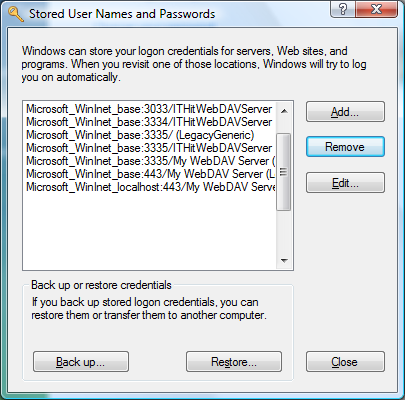
Windows Shell caches user credentials authentication scheme that may cause various issues when developing WebDAV server. During the development, we recommend to leave the 'Save credentials' checkbox unchecked. If you have saved the credentials, you can clear credentials cache in the UI brought by the following command:
rundll32.exe keymgr.dll, KRShowKeyMgr
The above command will display a dialog with cached credentials in which you can delete them:
Debugging with Mini-Redirector HTTP Requests on localhost
In some cases, you may need to use the Visual Studio Development Server to develop your WebDAV applications (we recommend using IIS Express instead). As soon as the Development server is available on localhost only and you can not specify your computer name, Fiddler will not capture any requests. To debug WebDAV requests, you must specify 'localhost.fiddler' instead of 'localhost'. For example:
http://localhost.fiddler:5555
or
\\localhost.fiddler@5555\DavWWWRoot\